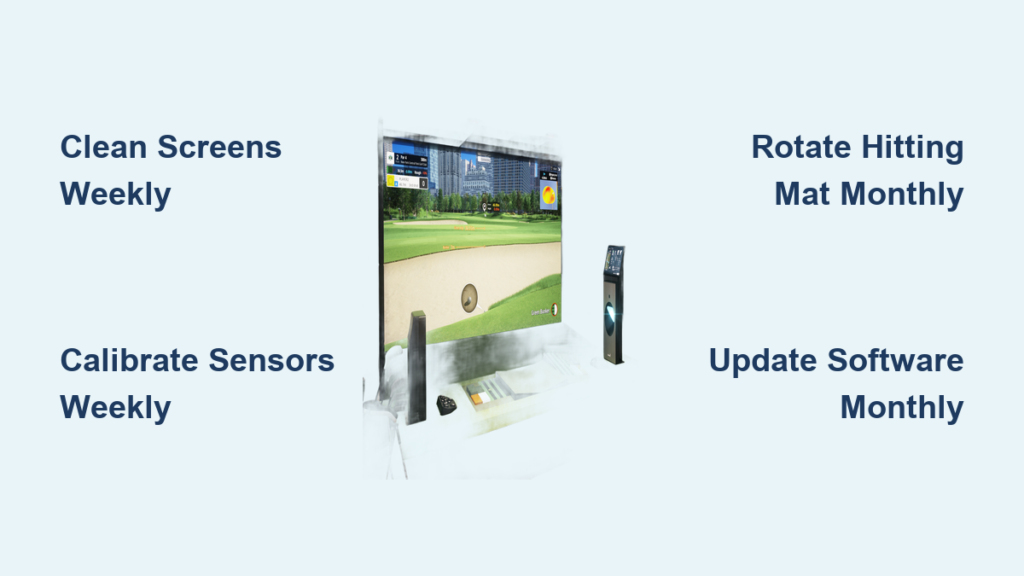
Your golf simulator should feel like the course, not a glitchy arcade game. Yet without proper golf simulator maintenance, even premium systems like the GOLFZON TwoVisionNX can develop tracking errors, dim projections, and worn hitting zones that ruin your practice sessions. Dust, cable stress, and outdated software silently degrade accuracy over time. This guide walks you through every essential upkeep task, from daily wipe-downs to annual professional servicing, so your simulator stays tournament-ready year-round.
By following a structured maintenance routine, you will reduce downtime, protect your investment, and enjoy consistently realistic ball flight data. Below are the proven steps that keep your indoor golf experience running flawlessly.
Clean Screens and Projectors on a Set Schedule

Dust, smudges, and fingerprints are the enemy of sharp visuals. A dirty impact screen distorts ball flight rendering and forces your projector to work harder, shortening its lifespan.
Wipe Screens with the Right Tools
Always use a microfiber cloth paired with a screen-safe cleaner. Never spray liquid directly onto the surface. Lightly mist the cloth and wipe in gentle circular motions to avoid streaks.
For projectors, clean only the external lens cap and outer housing. Do not open internal components. If the image looks foggy or misaligned, contact GOLFZON support before attempting any adjustments.
Inspect Screens Monthly for Hidden Damage
Run a quick visual check for:
– Persistent smudges that resist cleaning
– Dead pixels on display units
– Projector focus drift or color shifts
If clarity declines after cleaning, recalibrate the projector alignment through your GOLFZON Store Manager or product manual.
Calibrate Sensors Weekly for Accurate Shot Data
Your sensors are the brain behind every shot. Misaligned or obstructed sensors produce false launch angles, spin rates, and distances that wreck your training value.
Verify Sensor Positioning and Clear Obstructions
Confirm that front and rear sensor bars remain level and securely mounted. Even small shifts from impact vibrations can throw off readings. A spirit level makes this check fast and reliable.
Make sure no golf bags, mats, or furniture block the sensor field. A clean play zone is critical for consistent detection.
Run the Built-In Calibration Tool
Access sensor calibration through your system settings:
1. Launch maintenance mode
2. Select “Sensor Calibration”
3. Follow the on-screen prompts to realign detection zones
Allow 10 to 15 minutes for full recalibration. Repeat this process weekly or anytime the unit is moved.
Care for the Hitting Mat and Surrounding Flooring
The impact zone absorbs thousands of swings per year. Without attention, wear patterns develop, ball behavior changes, and safety risks increase.
Rotate or Flip the Mat Every Month
Most GOLFZON mats are reversible or rotatable to spread out wear. Identify high-impact zones, usually the center and heel areas, then rotate the mat 180 degrees each month.
If your model supports dual-sided use, flip it every 3 to 6 months based on how often you play.
Vacuum Debris After Every Session
Loose grass, sand, and shoe particles wear down fibers and create slip hazards. Use a soft-brush vacuum attachment weekly to pull embedded dirt from the mat surface.
Avoid water or chemical cleaners unless your product manual specifically approves them. Most synthetic mats degrade when exposed to moisture.
Keep Software and Firmware Current
Outdated software introduces bugs, compatibility problems, and security gaps. Regular updates unlock new features and keep performance sharp.
Check for Updates Every Month
Log into the GOLFZON Store Manager or system dashboard:
– Navigate to “System Settings”
– Select “Software Update”
– Install any available patches
Back up course data before each update. Never interrupt the process, because a power loss can corrupt the operating system.
Turn On Auto-Update When Possible
Some GOLFZON models support scheduled background updates. Enable this feature through the Customer Portal to cut down on manual work.
If your system does not support auto-update, set a monthly calendar reminder to check manually.
Inspect Cables and Test Connectivity

Loose or damaged cables break communication between sensors, displays, and the control box. The result is frozen screens, dropped signals, or total shutdowns.
Perform a Visual Cable Check Monthly
Look over every connection point:
– HDMI and power cords at the projector
– Ethernet cables running to the router and control box
– USB links connecting to sensor arrays
Watch for fraying, bent pins, or loose fittings. Replace any damaged cable immediately with an OEM equivalent to maintain signal integrity.
Organize Cables to Prevent Wear
Use cable ties or raceways to keep cords out of high-traffic zones and away from moisture. This reduces port stress and cuts down on tripping hazards.
For commercial setups, label each cable at both ends. Troubleshooting becomes much faster when you can trace lines instantly.
Control Room Climate and Airflow
Electronics thrive in stable conditions. Extreme heat, humidity, or sudden temperature swings quietly damage internal parts over time.
Maintain Ideal Temperature and Humidity
Keep your simulator room within these ranges:
– Temperature: 68°F to 77°F (20°C to 25°C)
– Humidity: 40% to 60%
Avoid placing the unit near HVAC vents, windows, or exterior doors where conditions fluctuate rapidly.
Ensure Proper Ventilation Around Equipment
Leave at least 12 inches of clearance around the control box and projector. Dust buildup on cooling fans leads directly to overheating and shutdowns.
Clean air filters quarterly using compressed air. Never block exhaust ports with storage bins, towels, or decorations.
Troubleshoot Frequent Simulator Alerts
Quick responses to error messages prevent small glitches from becoming expensive repairs. Here is how to handle the two most common alerts.
“Sensor Not Detected” Warning
Common causes include:
– A loose USB connection
– A recent power interruption
– An obstruction in the detection zone
Fix steps:
1. Reboot the system
2. Reseat the sensor cable firmly
3. Clear the play area completely
4. Recalibrate through system settings
If the alert persists, contact tech support at tech@golfzon.com or call 833-693-4653.
Projector Shows No Signal
Work through this checklist:
– Confirm the HDMI cable is secure at both ends
– Switch the input source on the display
– Restart the control unit
– Try a different HDMI port or replacement cable
If nothing changes, test with another display device to isolate whether the issue lies with the projector or the control box.
Schedule Professional Service Every Year
Even careful owners cannot reach internal components safely. Annual expert servicing catches hidden wear before it turns into downtime.
Book a Qualified Technician
Commercial operators should schedule professional maintenance every 12 months. Home users can usually stretch this to 18 months depending on usage frequency.
A standard service visit typically covers:
– Internal dust removal
– Firmware integrity verification
– Sensor sensitivity testing
– Backup system confirmation
Reach out to tech@golfzon.com or call 833-693-4653 to arrange your service appointment. Customer service hours run Monday through Saturday, 9 a.m. to 9 p.m. ET.
Frequently Asked Questions About Golf Simulator Maintenance
How often should I clean my golf simulator screen?
Wipe down your impact screen with a microfiber cloth after every few sessions. Perform a deeper inspection and cleaning once per month to catch smudges and check for damage before they affect image quality.
What causes sensor calibration drift on a golf simulator?
Vibrations from repeated impacts, accidental bumps, or moving the unit can shift sensors out of alignment. Running the built-in calibration tool weekly keeps detection zones accurate and shot data reliable.
Can I use household cleaners on my hitting mat?
Avoid standard household cleaners unless your product manual specifically approves them. Most synthetic mats break down when exposed to water or harsh chemicals. Stick with dry vacuuming using a soft-brush attachment.
How do I update software on my GOLFZON simulator?
Log into the GOLFZON Store Manager, navigate to System Settings, and select Software Update. Always back up your course data before installing patches and avoid interrupting the process to prevent corruption.
What room temperature is best for a golf simulator?
Maintain your simulator room between 68°F and 77°F with humidity between 40% and 60%. Stable conditions protect electronics and prevent projector and sensor performance issues.
When should I call professional support for my golf simulator?
Schedule annual servicing every 12 months for commercial setups or every 18 months for home use. Contact GOLFZON support immediately if you see recurring error alerts, sudden image quality drops, or hardware damage.
Key Takeaways for Long-Lasting Golf Simulator Maintenance
Consistent golf simulator maintenance protects your investment and keeps every round feeling authentic. Focus on the five pillars covered in this guide: clean screens and projectors, weekly sensor calibration, mat rotation and vacuuming, monthly software updates, and stable room climate. Add annual professional servicing to catch internal wear, and your system will deliver accurate data and crisp visuals for years.
Set calendar reminders for each task, bookmark the GOLFZON Customer Portal, and keep tech@golfzon.com saved in your contacts. When something feels off, do not wait. Reach out to GOLFZON support at 833-693-4653 so small issues never become expensive repairs. Your simulator is built to perform. Give it the care it deserves.