
Imagine standing on the fairway, knowing exactly how far you hit your last drive and which club you used, all without ever opening an app mid-swing. Golf Pad Tags make that possible through smart, automatic shot tracking. Each tag uses NFC (Near Field Communication) technology, the same system behind tap-to-pay features on your phone, to log every shot the moment you tap your club. No buttons, no typing, no distractions from your game.
In this guide, you’ll learn how Golf Pad Tags function, what powers them, and how to use them effectively. We’ll also cover phone compatibility, smartwatch limitations, and tips for avoiding common scanning issues so your round tracking goes smoothly from the first tee to the last putt.
How Golf Pad Tags Capture Shot Data
Tap-to-Log Shot Tracking
Every Golf Pad Tag contains a small, battery-free NFC chip with a unique identifier. When you tap the tag against your NFC-enabled smartphone, the Golf Pad app recognizes the tag instantly. It records the club you used and captures your GPS location at that moment. This all happens in real time, so your stats update automatically as you play your round.
Real-Time GPS Shot Mapping
After you tap a tag, the app uses your phone’s GPS to mark the starting point of your shot. When you tap your next club at a new location, the app logs that too and calculates the distance between the two points. Over 18 holes, this builds a complete shot-by-shot map showing distances, club choices, and performance trends, all without any manual data entry.
NFC Technology Behind the Tags
No Batteries, No Charging
Golf Pad Tags are entirely passive devices. They contain no batteries and need no charging because NFC technology draws power wirelessly from your phone during the tap. That brief energy transfer is enough to transmit the tag’s unique ID to the app. As a result, your tags last indefinitely with zero maintenance required.
Unique ID per Club
Each tag carries a distinct digital signature that links to one specific club in your virtual bag, whether that’s a driver, iron, or wedge. When you set up your tags inside the Golf Pad app, you assign each tag to a club. From that moment on, every tap tells the app exactly which club you used, removing errors and boosting stat accuracy.
Using Tags with Phone Cases

Compatible Case Materials
Most standard phone cases work just fine with Golf Pad Tags. Plastic, silicone, and leather cases typically don’t interfere with NFC scanning, so you can usually tap your club to your phone while it’s still in its case. Success may vary based on case thickness and internal materials.
Avoid Metal and Magnetic Cases
Cases with metal plates, magnetic closures (such as wallet-style cases), or RFID-blocking layers can block NFC signals. If your phone isn’t reading tags reliably, try removing the case and tapping again. If it works without the case, the case is likely the cause. Pro tip: Position tags on the club so you tap away from any magnets in your phone or case for best results.
Smartwatch Compatibility Limitations
Smartwatches Can’t Read Tags Yet
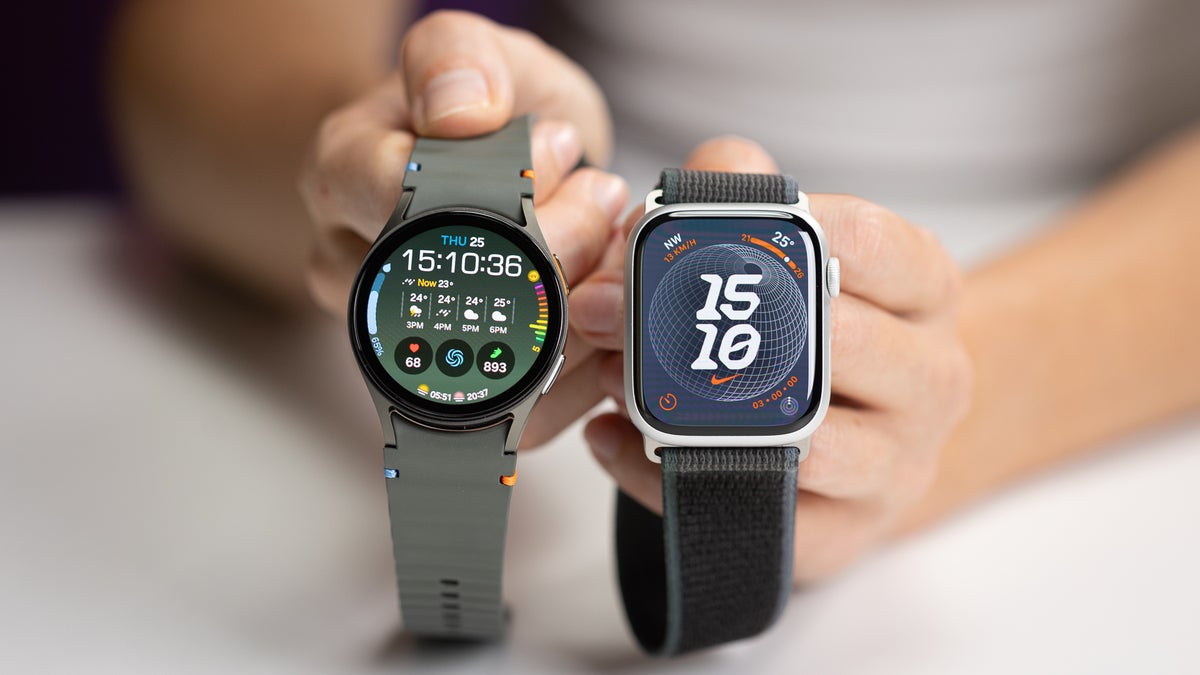
Right now, no smartwatches (including Samsung Galaxy Watches and Apple Watch) can read NFC tags. While these watches can transmit NFC for things like payments, they lack the hardware to scan external tags. That means you can’t tap your club to your watch to log a shot.
Future Support Possible
Golf Pad has committed to adding smartwatch support if and when manufacturers enable NFC tag reading on their devices. For now, your smartphone is the only option for capturing tag data. Stay tuned to future app updates for any news on this front.
No Constant Phone Interaction Needed
Hands-Free Round Tracking
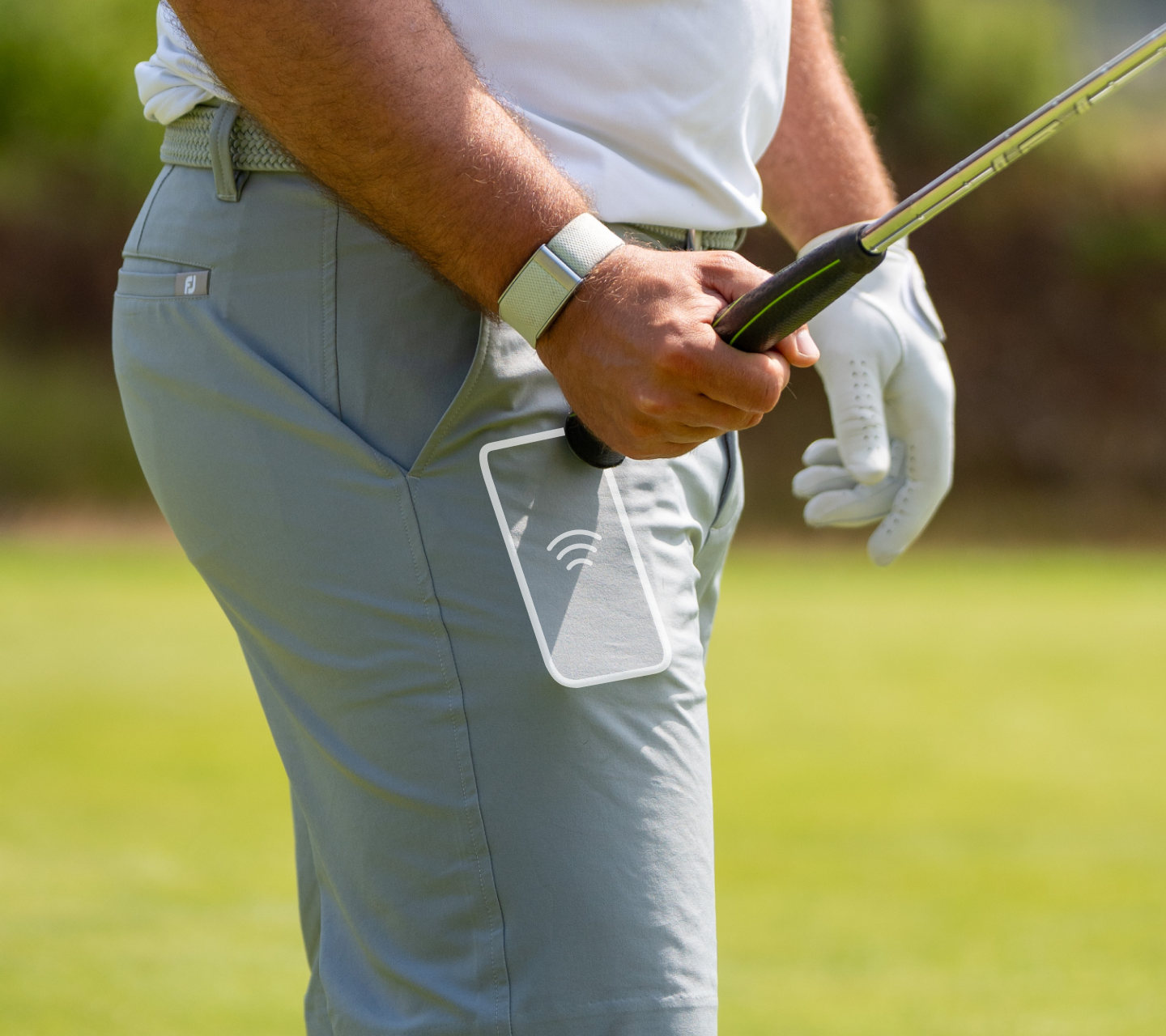
One of the biggest perks of Golf Pad Tags is the minimal phone interaction they require. Once your tags are set up and your round begins, you don’t need to open the app after every shot. Just tap your club to your phone, whether it’s in your pocket, your cart, or your hand, and the app logs the shot in the background.
Choose Your Level of Engagement
Some golfers love real-time feedback and pull out their phone after every shot to check distances. Others leave their phone untouched until the 18th hole. Both styles work perfectly. The system adapts to you, whether you want instant insights or a distraction-free round with post-game analytics.
Tag Weight and Club Impact
Ultra-Light Design
Each Golf Pad Tag weighs just 1.9 grams, roughly the weight of a paperclip. This minimal addition sits near the grip, where it has the least effect on swing weight and club balance.
No Effect on Performance
Thanks to the low-profile design and smart placement, most golfers never notice the tags during play. They don’t alter the feel or performance of your clubs. Even at high levels of play where small changes matter, these tags are considered non-impactful. You get advanced analytics without any compromise to your game.
Troubleshooting Common Tag Issues
Can’t Scan a Tag?
If your phone isn’t reading a tag, first confirm that NFC is enabled in your phone’s settings. On Android, go to Connected Devices > NFC. On iPhone, check Settings > NFC to make sure it’s switched on. Then try tapping the tag directly to the back of your phone, near the camera on iPhones or the center on most Androids.
“Incompatible Tag” Error
This message usually shows up when using an older, non-Golf Pad NFC tag or a duplicate tag. Only official Golf Pad Tags are supported. If you see this error, remove the tag from your bag in the app and re-register it. If the issue continues, reach out to Golf Pad support for help.
App Not Opening on Tap?
On Android, some phones default to opening Google Play when they scan NFC tags. To fix this, head into your NFC settings and set Golf Pad as the default handler. You can usually do this by scanning a tag and selecting “Always open with Golf Pad.”
Phone Compatibility Requirements
Supported Devices
Golf Pad Tags work with:
- iPhone 7 and newer (running iOS 13 or later)
- Most Android phones from 2016 onward with NFC capability
Older Golf Pad Tags remain compatible with newer iPhones, but always keep your app updated to the latest version for the best performance.
Check NFC Before Buying
Not sure if your phone supports NFC? Check your device specifications or look for the NFC option in your phone’s settings. Without NFC, the tags simply won’t work, so confirming this before purchasing is essential.
Maximizing Tag Performance
Proper Tap Technique
For reliable scanning, press the tag firmly against your phone and hold it there for 1 to 2 seconds. Swiping motions often fail. The sweet spot is usually the center or top-back of the phone, near the camera on most models. Try a few spots to find what works best with your specific device.
Keep Tags Securely Attached
Use the included adhesive to mount each tag near the end of your club’s grip. Make sure the surface is clean and dry before applying. Once attached, avoid prying or bending the tag, since this can damage the internal antenna and affect performance.
Test Before You Tee Off
Before starting your round, tap each tag to your phone and confirm the app registers the correct club. This quick check prevents missed shots and ensures your stats stay accurate from the very first swing.
Frequently Asked Questions About Golf Pad Tags
What exactly happens when I tap a Golf Pad Tag?
Each tag contains a small, unique radio token. When you tap it to your phone, the Golf Pad app reads that token and records your GPS position along with the club used. From there, the app calculates shot distances and generates real-time statistics for your round.
Will a phone case interfere with scanning my tags?
Scanning through a case often works just fine, but it depends on the material. Most plastic or leather cases work well, while metal cases can block or interfere with the NFC radio signal. Magnets in a case may also cause issues if they’re located near the phone. RFID blockers or any metal covering the phone will interfere with scanning.
Can I scan Golf Pad Tags with my NFC-enabled smartwatch?
Not at the moment. All NFC-equipped smartwatches, including Samsung Galaxy Watches, can only act as passive NFC transmitters. None of them are currently capable of scanning NFC tags. Golf Pad has stated they’ll add support if and when watch manufacturers enable tag reading capability.
Do I need to constantly use my phone during a round?
No, you don’t. You can be as hands-on or hands-off as you like. Some golfers leave their phone in their pocket for the entire round, while others check distances the moment they reach their ball. The system adapts to your style.
Do Golf Pad Tags need batteries?
No, there are no batteries to change or recharge. The tags are completely passive and draw the small amount of power they need directly from your phone during each tap.
Will the tags change how my clubs feel or swing?
Golf Pad Tags weigh only 1.9 grams each. Because of this minimal weight and their low-profile design, there’s virtually no impact on club weight or balance. Most players don’t notice them at all during play.
Key Takeaways for Using Golf Pad Tags Effectively
Golf Pad Tags simplify shot tracking by combining NFC technology with GPS mapping, giving you automatic data without breaking your rhythm on the course. Because the tags are battery-free, ultra-light, and require nothing more than a quick tap, they fit seamlessly into any golfer’s routine.
For the best results, make sure your phone supports NFC, avoid metal or magnetic cases, and take a moment to test each tag before teeing off. With these simple habits in place, you’ll get accurate distances, detailed club stats, and a complete shot-by-shot picture of every round, all from one quick tap per swing.